
Use cases
What you can configure
- Accepted documents. Turn document types on or off, for example payslips and tax returns for affordability, or bank statements and crypto exports for source of funds.
- How recent a document must be. Set a validity period per document type.
- Required data. Make optional fields required.
- Verification rules. For each matching rule, choose whether a mismatch sets the application to
needs-reviewordeclined.
Acceptable documents
Choose which document types the applicant can pick from. Each type can be enabled or disabled independently.Validity period
Set how recent a document must be, in months, per document type. Default: 6 months. A document issued earlier than that fails the Date of issue rule.User flow in the Web SDK
- The applicant selects a document type from the list.
- The applicant uploads files or takes photos of the pages. For payslips, up to 3 documents.
- Document Analysis extracts the data and matches it against the applicant’s details.
- Extracted data and match results appear in the application details in the Backoffice.
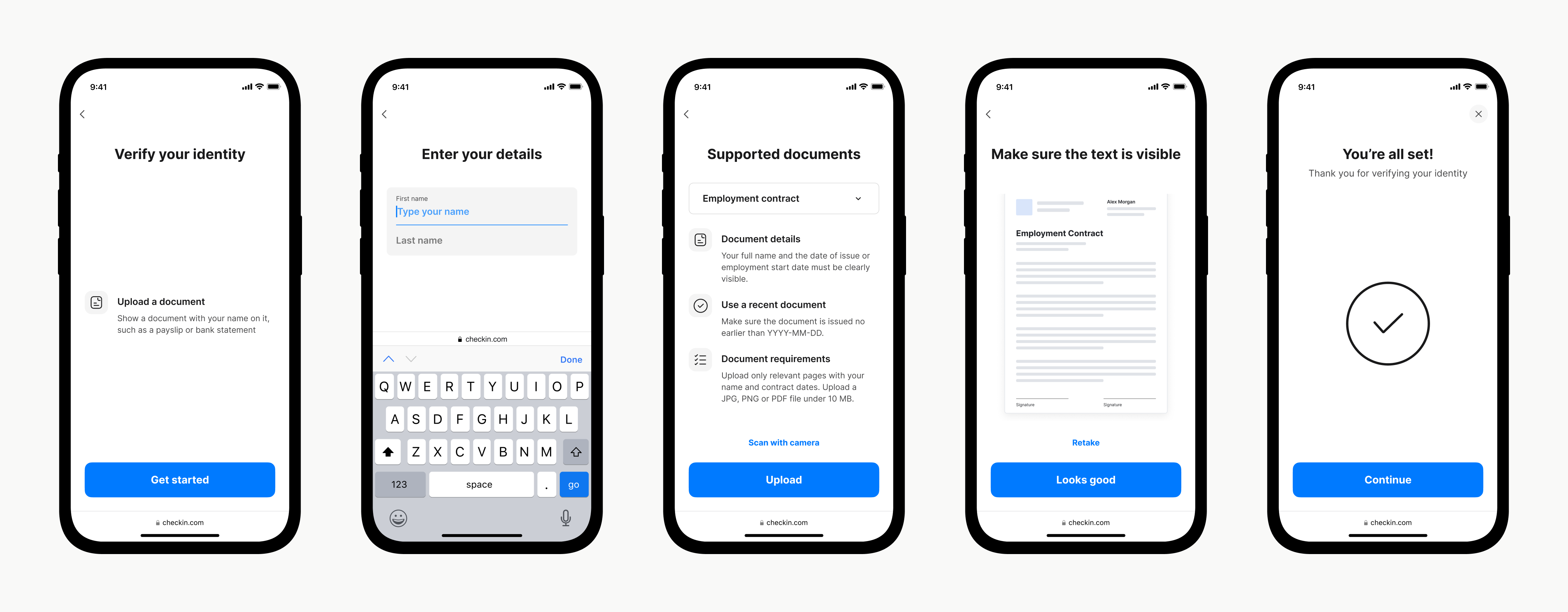
Document Analysis in the Web SDK
Matching rules
Each rule can be enabled or disabled. For each one you choose what happens when it fails:declined or needs-review.
Request
Send the applicant’s details inapplication.fields and the document in application.documentAnalysis.file.
Example
documentType.
Result
Example
A bank statement checked against the applicant’s first and last name. Matching ignores letter case.Concerns
Values in{braces} are filled in at runtime.
All codes are in Considers lists.